Set up your Glint display.
From unboxing to a personalised dashboard in under 10 minutes. This guide walks you through every step.
What's in the box
Glint display
7.5" tri-colour e-paper, 800 × 480 px
USB-C cable
For charging
5000 mAh battery
Built-in, lasts 1–6+ months
Setup in 5 steps
Power on
Slide the power switch on the right edge. On first boot the display walks you through setup itself, starting with the network to join and a QR code that joins it for you.
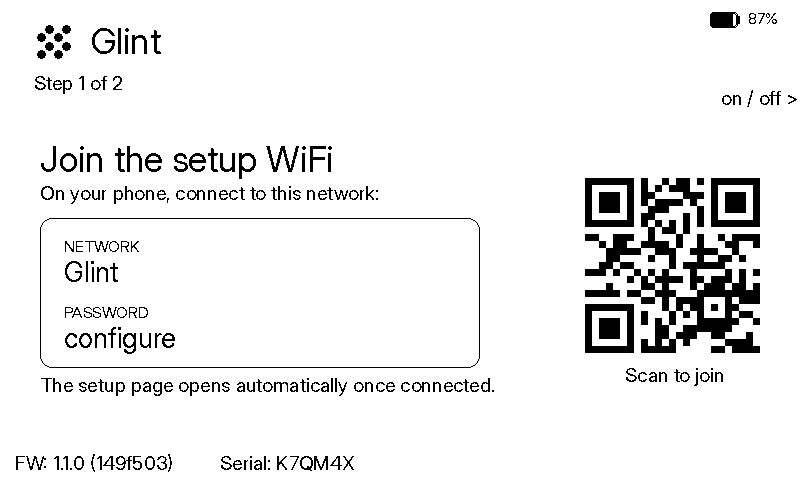
A colour panel (B/W/R/Y or Spectra 6) takes 20–30 seconds per redraw, so it shows the whole flow on one screen instead and holds it there. That's expected, not a hang.
Connect to WiFi
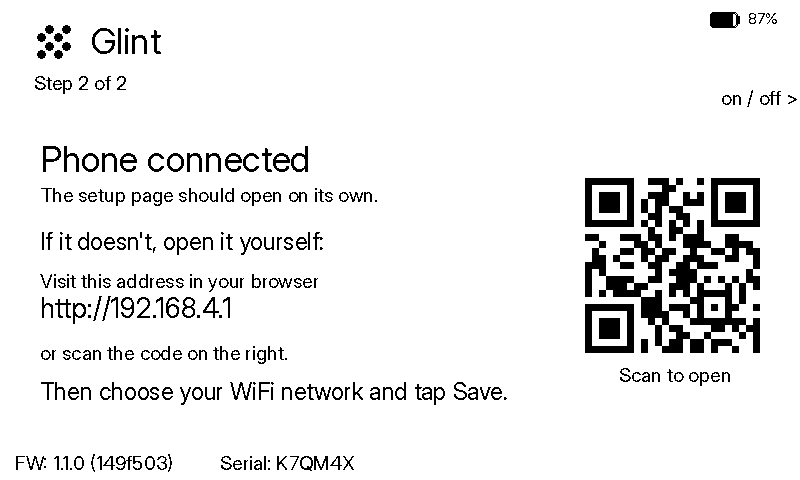
Your Glint creates a temporary WiFi hotspot so you can enter your home network credentials.
- a. On your phone or laptop, connect to WiFi network "Glint" (password:
configure) - b. A config page opens automatically, or scan the QR code on the display
- c. Tap Scan Networks, choose your home WiFi, and enter the password
- d. Tap Save. The device restarts and connects
Note: Glint supports 2.4 GHz WiFi only. Make sure you connect to a 2.4 GHz network, not 5 GHz. Setup stays open for 5 minutes. Press the Config button to re-enter it.
Explore the Dashboard
Your Glint device should automatically be adopted and linked to your email address. You should be able to see your device in the Devices page.
- a. Go to dash.glintdisplay.com and log in or create an account if you have not
- b. Navigate to Devices. You should already see your device.
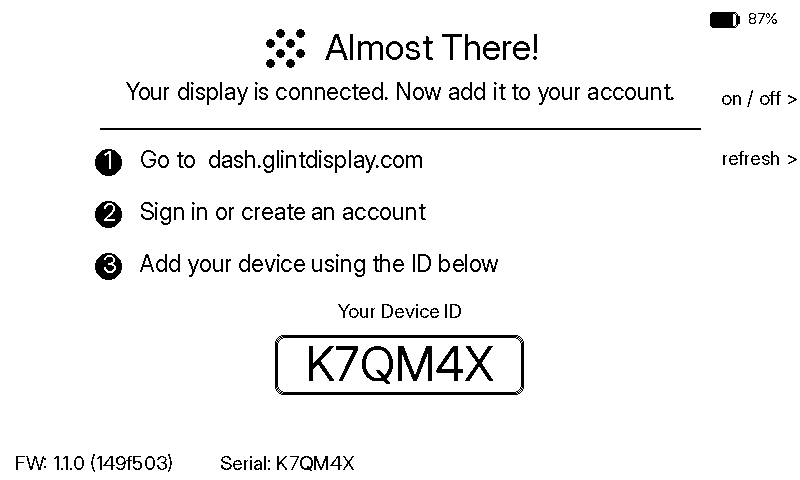
If it hasn't been claimed yet, the display says so and shows the Device ID to add:
Build your dashboard
Think of widgets like apps on your phone. Each one shows a piece of info like bus arrivals, weather, calendar, news, or anything else.
Pick your widgets
Browse the widget gallery. Some work right away, others need a quick setup (like connecting your calendar or choosing a bus stop).
Arrange a layout
Create a new layout and drag widgets onto the 4 × 2 grid. Resize and reposition however you like. Preview in real time before pushing to your device.
Schedule & assign
Create a timeline to rotate layouts throughout the day: bus arrivals in the morning, news in the evening. Then assign the timeline to your device and you're done.
Your display updates automatically. No need to touch it again unless you want to change things up.
Available widgets
Pre-built widgets ready to drag onto your dashboard. You can also create custom widgets with HTML/CSS and connect to any REST API.
Bus Arrivals
Real-time LTA bus timing
Weather
Weather forecast
Google Calendar
Upcoming events
News
CNA & Straits Times headlines
ActiveSG Gym
Live gym occupancy
Clock
Analog or digital
Countdown
Days until an event
Image
Add a static image by URL
Yahoo Finance
Stock prices & tickers
Spotify
Now playing info
RSS Feed
Any news source
Custom Widget
Your own HTML + any API
Device overview
- Power Switch On / off
- Restart Reboot the device
- Clear Screen Refresh to blank white
- Config Mode WiFi & server setup
- Manual Refresh Poll the server now
- USB-C Charging
Buttons
Glint has a power switch and four buttons along the right edge of the device.
Power Switch
Top. Turns the device on and off
Restart
Reboots the device
Clear Screen
Refreshes to a blank white screen
Config Mode
Re-enter WiFi and server setup
Manual Refresh
Force an immediate display update
Factory reset: Hold Manual Refresh — the bottom button — for 5 seconds. After 2 seconds the display warns you; let go then and it just reboots. Hold to 5 and it clears every setting, including WiFi, and starts setup again.
Display modes
~2 second refresh. Lower power draw, longer battery life. Best for frequent updates.
Full refresh takes about ~20 second to refresh, also supports black/white flicker-free refreshes for ~1 second. Richer visuals with a red accent colour. Uses more power per refresh.
Switch modes anytime from the dashboard under Device Settings.
Battery & charging
- Charge via USB-C. Works with any standard USB charger.
- Full charge takes about 8–10 hours. A green LED shows while charging; it blinks green when full.
- Battery life: 1–6+ months depending on refresh frequency and display mode.
- Monitor battery level from the dashboard
Firmware updates
Glint updates itself over-the-air (OTA). When a new version is available, your device downloads and installs it automatically on the next refresh. No cables needed.
Screens the display can show
If your Glint is showing one of these instead of your dashboard, here is what it means and which button fixes it.
Cannot connect to server
The display is awake but can't reach WiFi or the Glint server. The lines in the middle tell you which part failed.
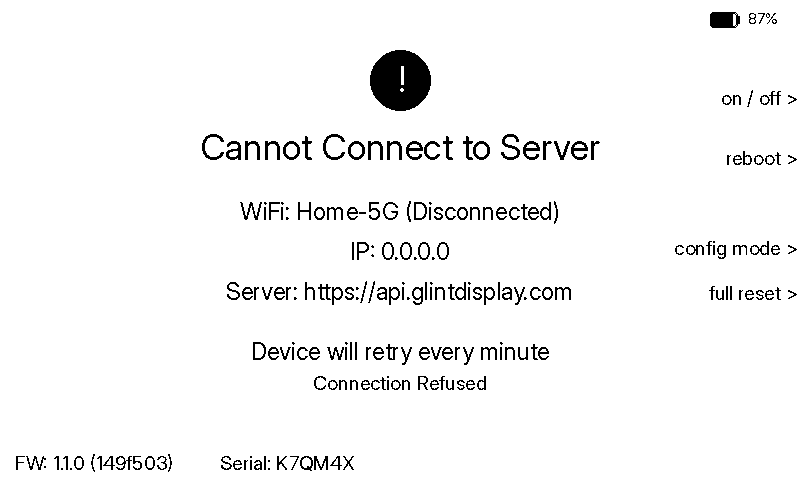
What to do: It retries on its own, backing off from every minute to every half hour. If your WiFi password changed, press Config to set it again.
Almost there
The display is online but no account has claimed it yet.
What to do: Sign in to the dashboard and add the Device ID shown in the box. Press Refresh once you have, to pick up your layout immediately.
Setup timed out
The setup window closed before any WiFi was saved.
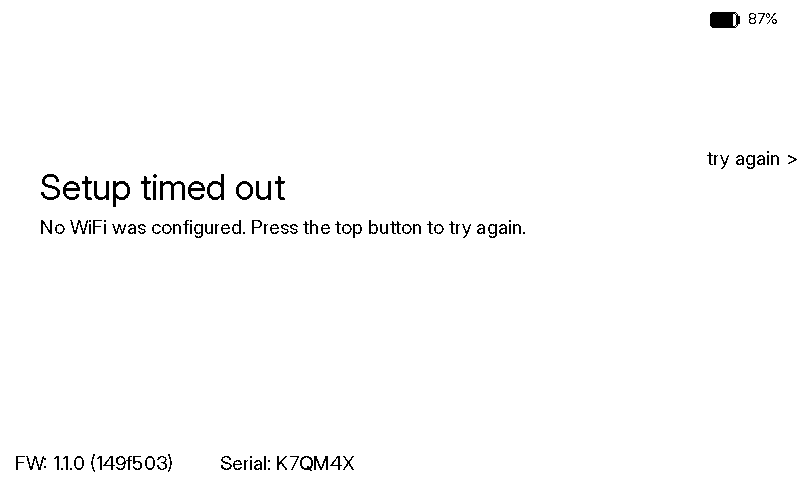
What to do: Press Restart to start setup over.
Keep holding to factory reset
You have held Refresh for 2 seconds. Keep holding and everything is erased — WiFi, server address, all of it.
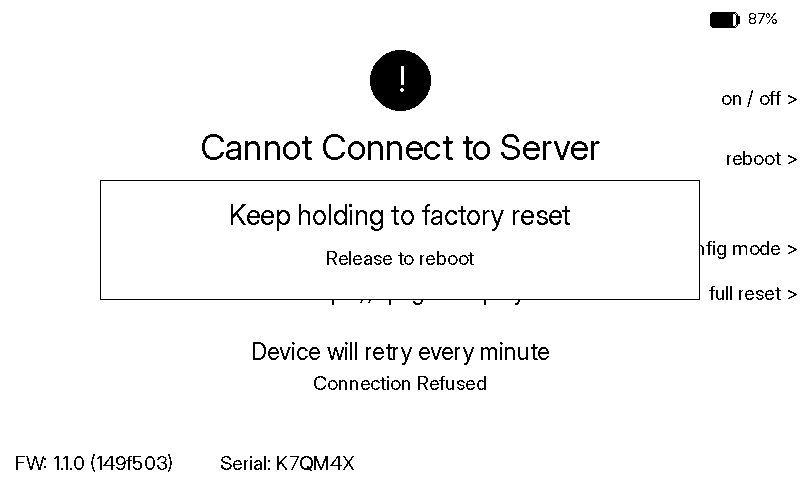
What to do: Let go now to reboot without changing anything. Hold to 5 seconds to wipe it.
Care & maintenance
- • Display: E-paper doesn't emit light, so it's perfectly readable in sunlight. No eye strain, no burn-in risk.
- • Cleaning: Wipe gently with a soft dry cloth. Avoid liquids on the screen.
- • Temperature: Best kept indoors between 15–35 °C. Do not place under direct sunlight or by the window as it may affect its performance and longevity.
- • Storage: If storing long-term, charge to ~50% and power off.
Troubleshooting
Display shows "Cannot Connect to Server"
Display is blank after adoption
Can't find the "Glint" WiFi network
Device not appearing in dashboard
Battery draining fast
Quick specs
Display
7.5" e-paper
Resolution
800 × 480 px
Colours
B/W + B/W/Red
B/W refresh
~2 seconds
Colour refresh
~20 seconds
Battery
5000 mAh
Battery life
1–6+ months
WiFi
2.4 GHz 802.11 b/g/n
Chip
ESP32-S3
Charging
USB-C
Updates
Over-the-air
Need help?
Reach out anytime. We're happy to help you get the most out of your Glint.